
The Smith College Imaging Center Collection is hosted on JSTOR and managed through JSTOR Forum.
Once you use your login to enter Fourm, you’ll be able to see all of the Imaging Center’s projects. The project we do most of our work in is the Imaging Center Collection.
Uploading Images
- Click on the Smith College Imaging Center Collection.
- Click the red Add button and choose the Upload Media option.
- Drag and drop or select one or more image files to upload to the collection.
- Once the upload is finished, Forum will create a new blank item record for each image.
Cataloging an Item Record
What Am I Describing?
Before you begin cataloging, you’ll have to decide which part of the image your metadata fields will describe.
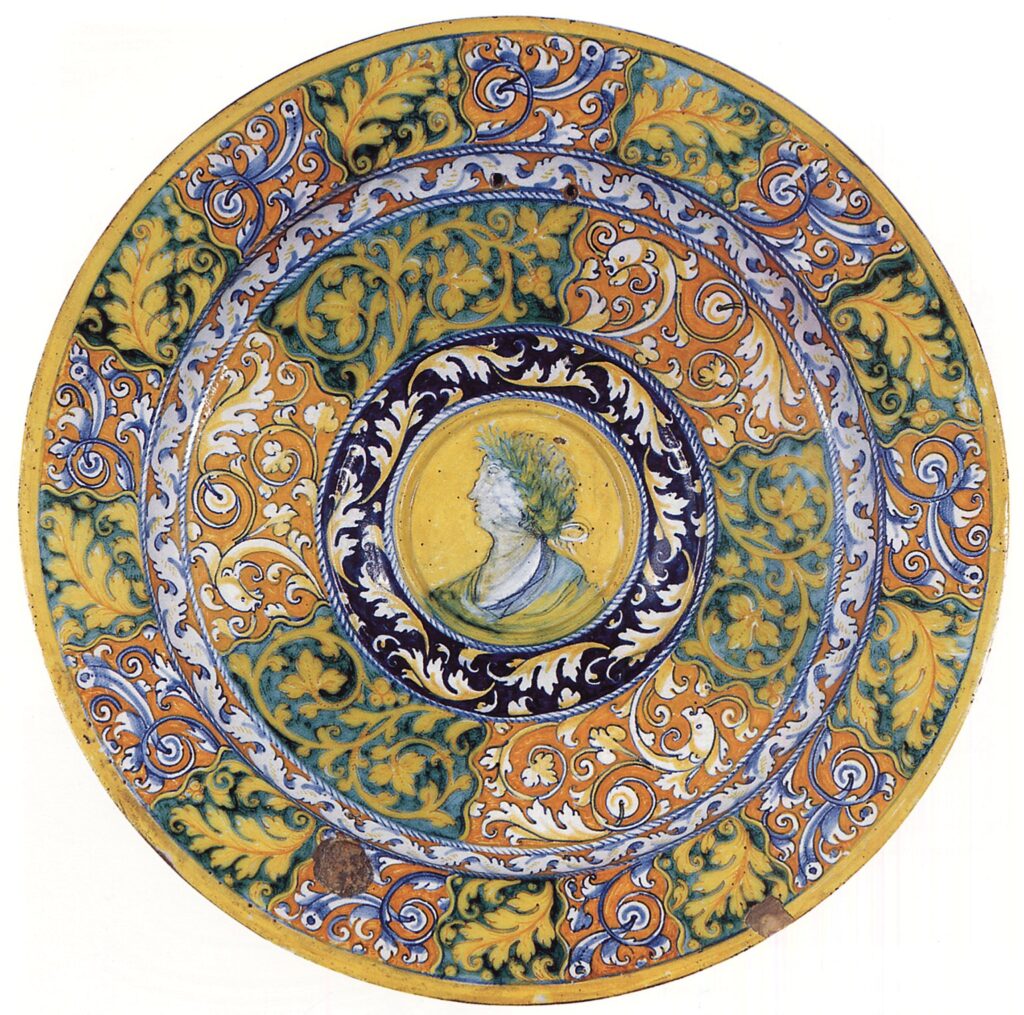
For most sculptural objects, places, and architectural structures, the 3D object represented in the photograph is what you’re describing. For example, list the date a plate was created rather than the date it was photographed.
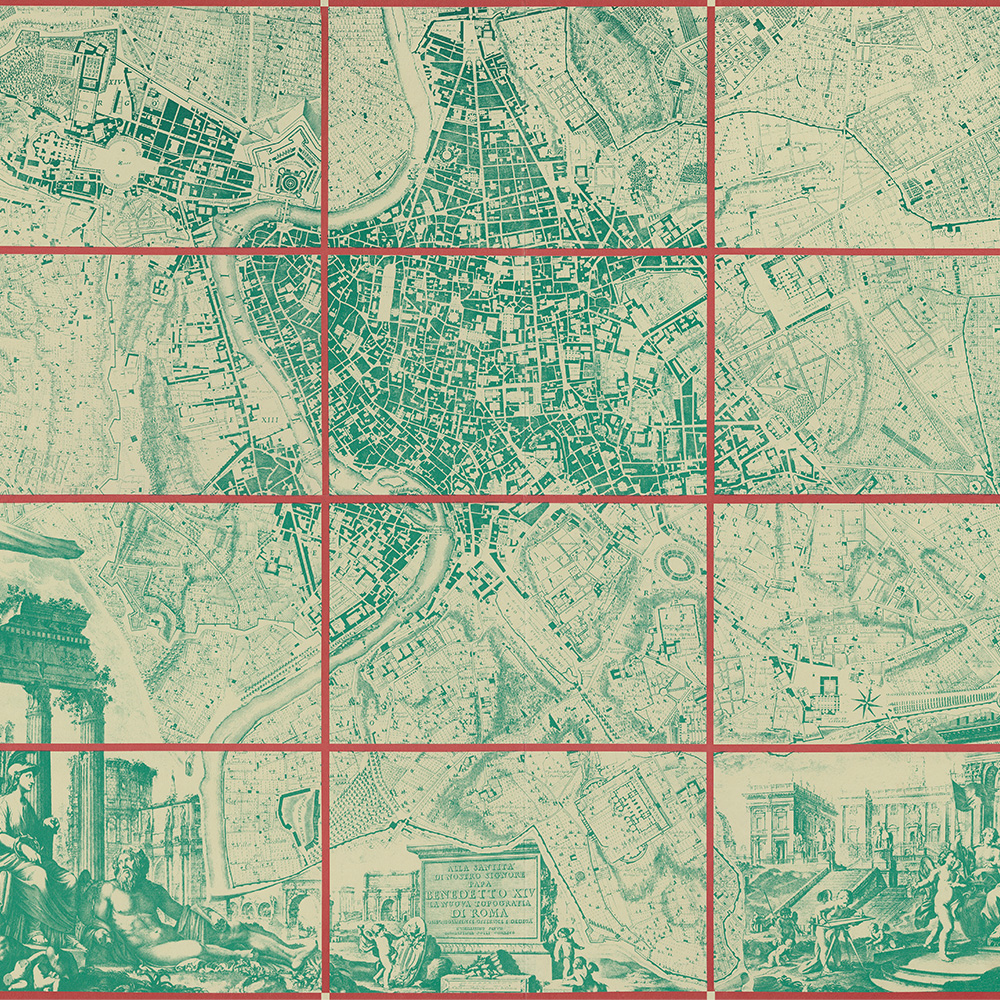
For illustrations, maps, plans, and paintings, describe the 2D object. For example, list the date a map was created rather than the period or age of the structure it depicts.
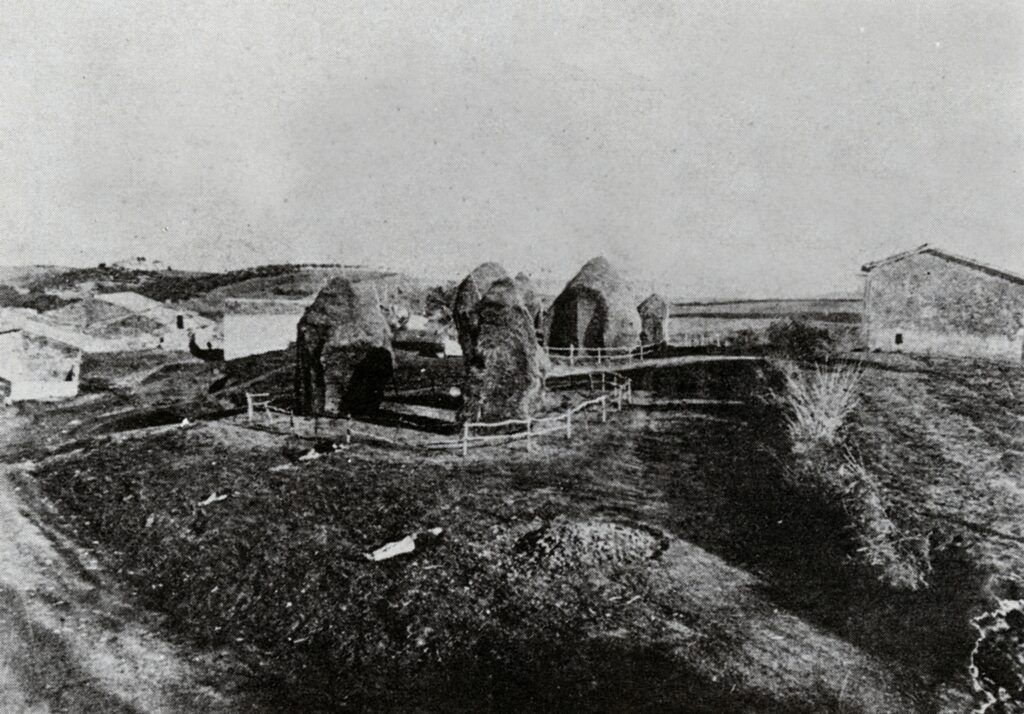
For records where the photograph itself is more significant that the object being photographed, catalog the image as a photograph. List the photographer as the creator and the date as the date the image was shot.
There will be records where these choices are unclear. Don’t be afraid to ask a supervisor for clarification on complicated items.
Search for Similar Records
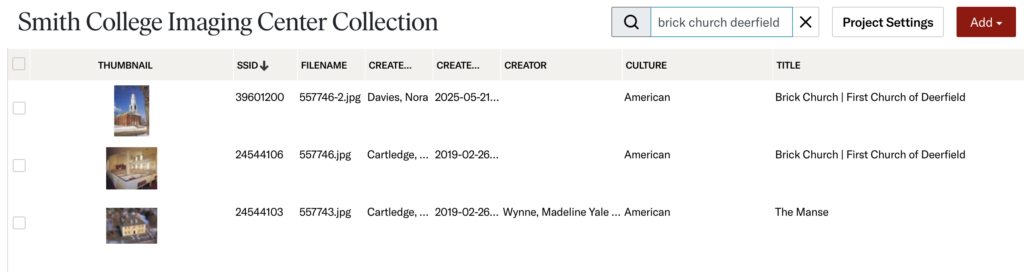
The object you’re cataloging may already have related records within the collection.
- Use the search bar at the top of the page to search the title of your object.
- If the title does not yield results, try searching by artist or location. The work may be known under a different but similar name.
- Choose these records carefully! Make sure that the images, dates, or location information reflect the information provided with your new object.
Copy Any Duplicate Information
- Click on one of the previously-created records.
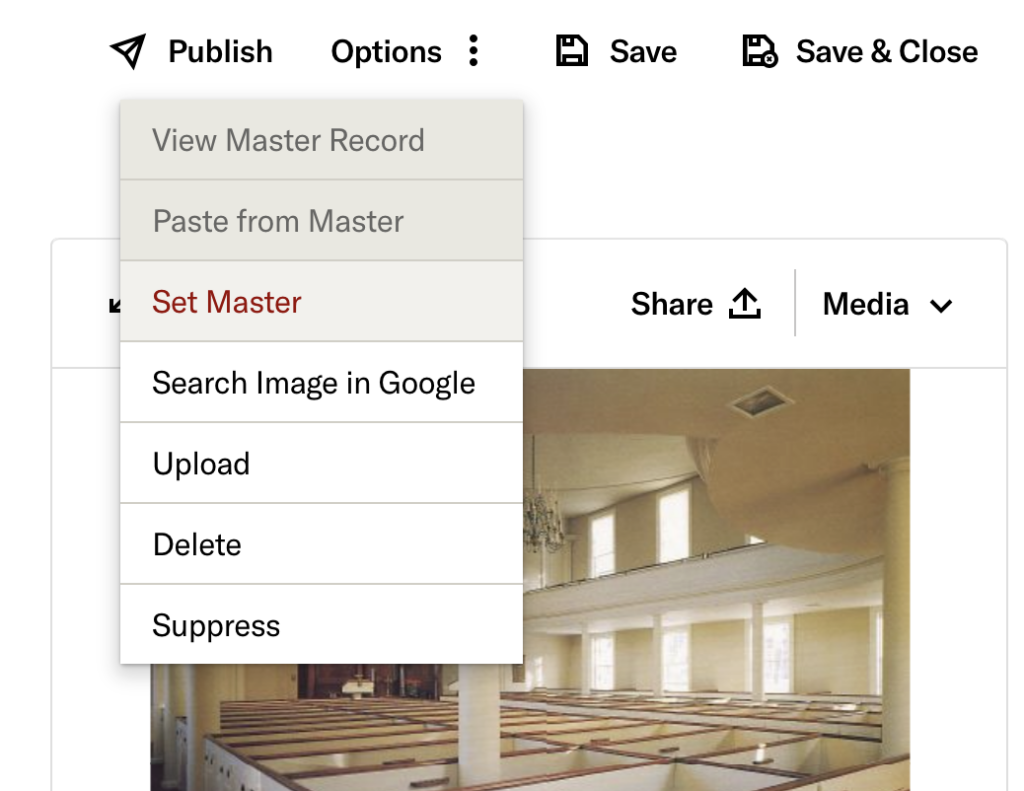
- Click the Options button at the top of the page and choose Set Master. (The record set as the master record will be indicated by an orange star icon).
- Return to your new record.
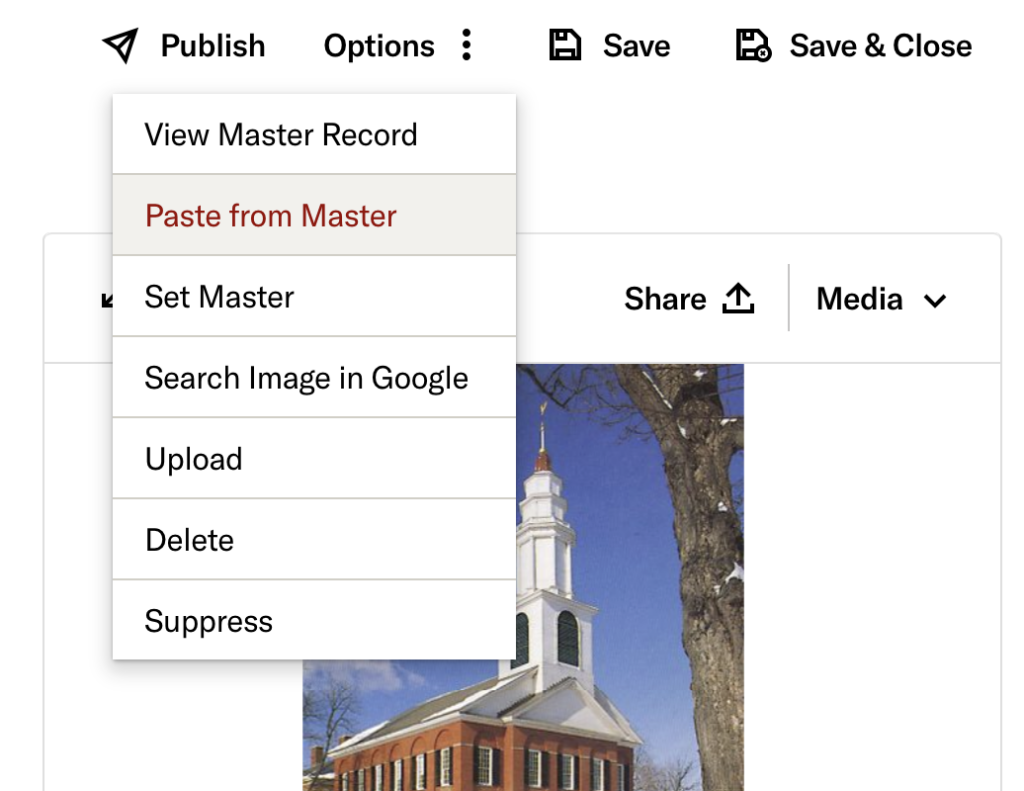
- Click the Options button and choose Paste from Master. This will duplicate all the information from the master record.
- Click Save. You can repeat this process for as many records as you need to.
- Once you’re finished, return to the master record, click Options and choose Unset Master.
Fill the Metadata Fields
If you don’t find any similar records to copy, it’s time to catalog the new item by filling out its blank metadata fields.
First, make sure that you’re working on the Full record tab for the item.

The following section is a breakdown of all the relevant fields that you’ll fill out or edit when cataloging an item.
- Skip any field if the information is unknown or unavailable except for Title, Work Type, and Artstor Classification. Skip all the fields not described in this section.
- When searching for any term besides Culture, always use terms marked as AAT (Art & Architecture Thesaurus), ULAN (Union List of Artist Names), or TGN (Thesaurus of Geographic Names). Avoid using terms marked as Smith College: Provisional. You can use provisional terms when no official ones are available, but use them sparingly.
- Multiple terms in a field should be separated by a semicolon.
Creator
Click the book icon to search for the creator(s) of the work. In the pop-up menu, type the name of the artist/designer/etc and click Link & Append.
The result should read like this:
- Nolli, Giovanni Battista (Italian engraver and architect, 1701-1756)
- Rhie, Marylin M. (American photographer and scholar, 1937-2020)
Title
Enter a title for the work using camel case (e.g. Camel Case). If the object has alternate or other language titles, separate them using the pipe symbol “|” by clicking shift+backslash.
An example of a title might be:
- Vairocana Buddha | Pirosa Bul
- Plan of Rome, as in 1667
Culture
Click the book icon and select Shared Shelf Culture from the drop-down menu. Search for the culture of the primary creator and click Link & Append to fill the field.
The culture will typically be a broad term that matches the Artstor Country, for example:
- Tibetan
- Italian
- Canadian
Image View Description
Enter the view description in lower case. This may include broader view notes or more specific location notes. The description can also include additional contextual information.
For example:
- detail view
- view from southwest
- interior view of third floor, west wall
- full view; facsimile
Date
Enter a date range for the object or textual date information. For dates before the Common Era use BCE, for estimate dates use a date range or “ca.”
For example:
- 1205 – 1225
- ca. 160 BCE
- 15th century
Artstor Earliest & Latest Date
Enter the numerical dates that represent your date range or estimate dates in the Date section. Use negative numbers for BCE dates. If there is only one date, put that date in both the earliest and latest date field.
For example:
- Earliest: 1205, Latest: 1225
- Earliest: -160, Latest -160
- Earliest: 1400, Latest: 1499
Style/Period
Click the book icon to search the Art & Architecture Thesaurus. Type in a style or period for the object. This is also where more specific cultural information can be entered.
For example:
- Impressionism
- Five Dynasties
- Gupta
Materials/Techniques
Click the book icon to search the Art & Architecture Thesaurus and search for the materials and techniques used when creating the object and click Link & Append for each one.
For example:
- gouache (water-base paint)
- cotton (textile)
- engraving (printing process)
Measurements
Enter the full measurements of either the 2D or 3D object depicted depending on the object you’re cataloging.
The result should read like this:
- 73 x 81 inches
- 21.5 centimeters (height)
Artstor Classification
Click the book icon to search and choose a classification from the list. This classification will typically be similar to the Work Type.
Work Type
The work type describes what an object is.
Click the icon to use the Art & Architecture Thesaurus to search for the Work Type and click Link & Append. The AAT term will usually be written as plural.
For example:
- temples (building)
- paintings (visual works)
- sculpture (visual work)
Repository
If the work is an object housed in a museum, library, or larger building, list that location here.
Click the book icon and search the Thesaurus of Geographic information or Shared Shelf Names. If you find the Repository, click Link & Append. You may need to adjust the term to fit the typical format we use.
The result should read like this:
- Alchi Monastery (Ladakh, India)
- Metropolitan Museum of Art (New York, New York, United States)
- Musée Guimet (Paris, France)
Repository Accession Number
If the object is a part of a library or museum collection, list its accession number here.
Location
Choose the current or most recently known location of the item or structure. If the object is held in a museum, this will be the geographical location of the museum.
Click the book icon to search for the Thesaurus of Geographic Information for place names and click Link & Append.
The result should read like this:
- Rome, Roma, Lazio, Italy
- Northampton, Hampshire, Massachusetts, United States
Creation/Discovery Site
Choose the location where the object was originally found or created. Leave this section blank if the creation site is the same as the current location.
Click the book icon to search for the Thesaurus of Geographic Information for place names and click Link & Append.
The result should read like this:
- Ostia, Roma, Lazio, Italy
Artstor Country
The country of the item typically reflects the culture of the creator or the country in which the object was created. For example, a Tibetan painting currently in a New York museum would still have the country listed as Tibet.
Click on the list icon to search for and select the country.
Description
This is where you will add any additional contextual or descriptive information about the item. Always use full, punctuated sentences when writing a description.
For example:
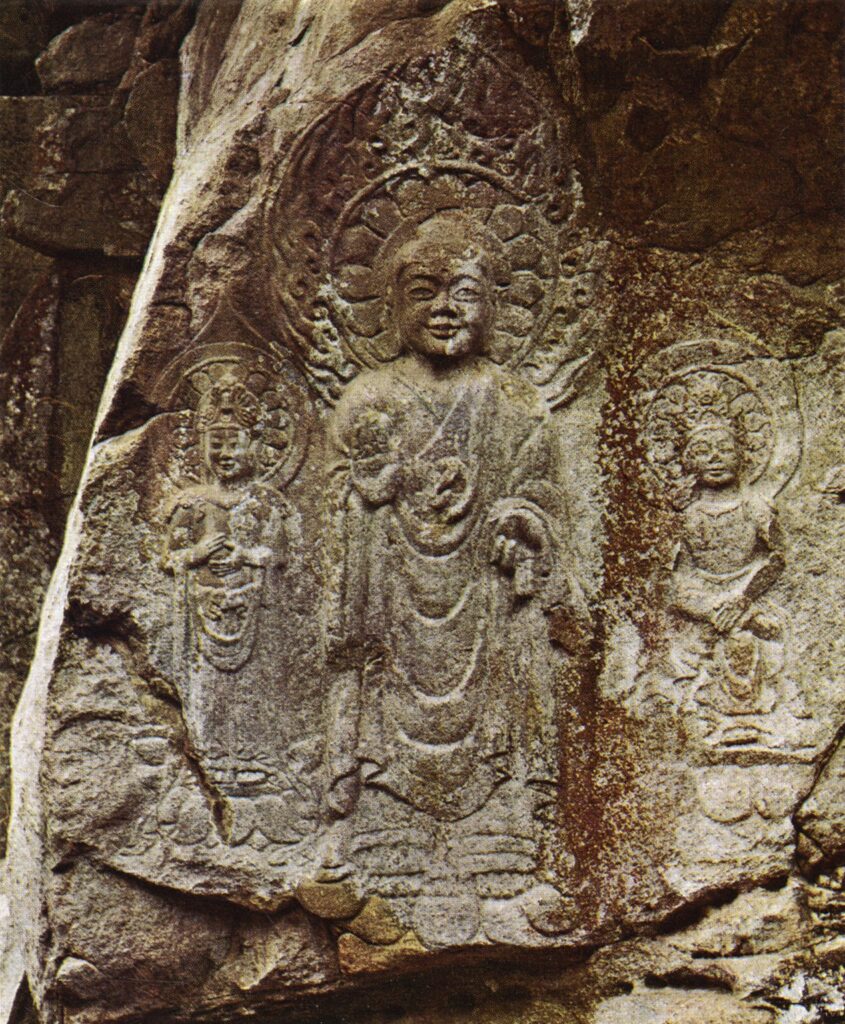
- “This Buddha triad (National Treasure 84) consists of a Shakyamuni Buddha flanked by two bodhisattvas, one standing and the other seated in a meditation pose. The photograph is a gift from Marylin Rhie.”
If you have no addition information to add, you can leave it blank.
Subject
Click the book icon to use the Art & Architecture Thesaurus or Thesaurus of Geographic Information to search for subject terms and click Link & Append.
Subject terms describe the content of the cultural object or artwork. They can also be used to describe topics related to the object.
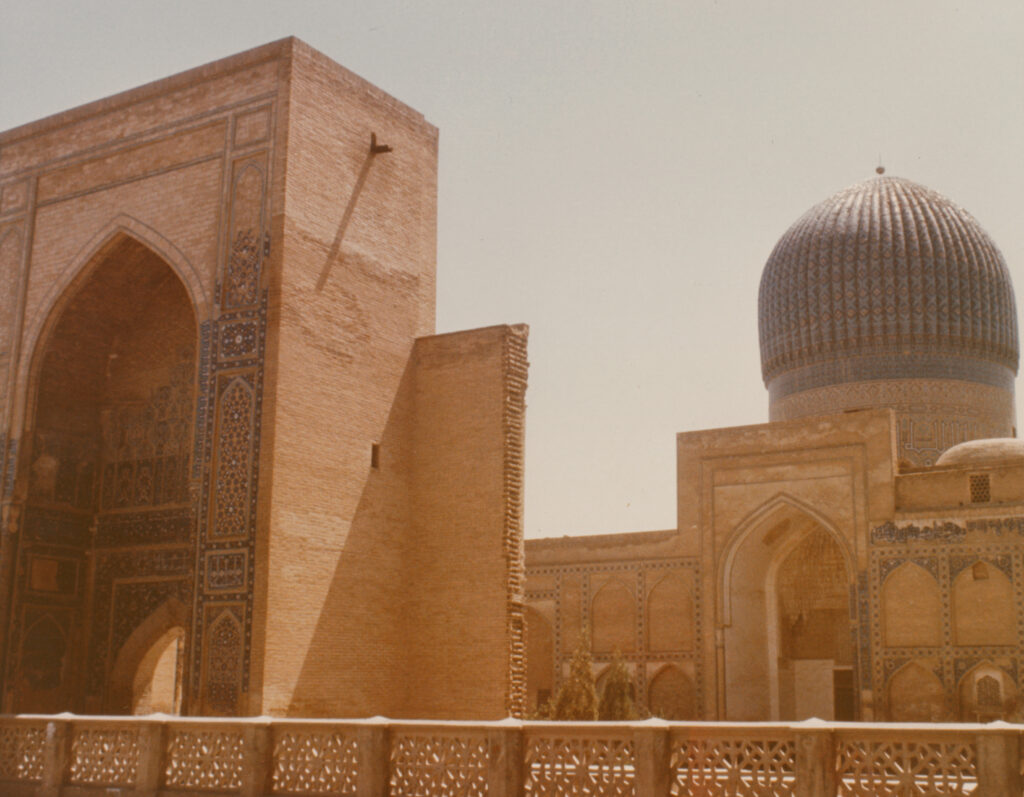
For example, the record of the Mausoleum of Timur might have the subject headings: Timur (Sogdiana conqueror, 1336-1405); mosaics (visual works); tombs; domes (architectural element).
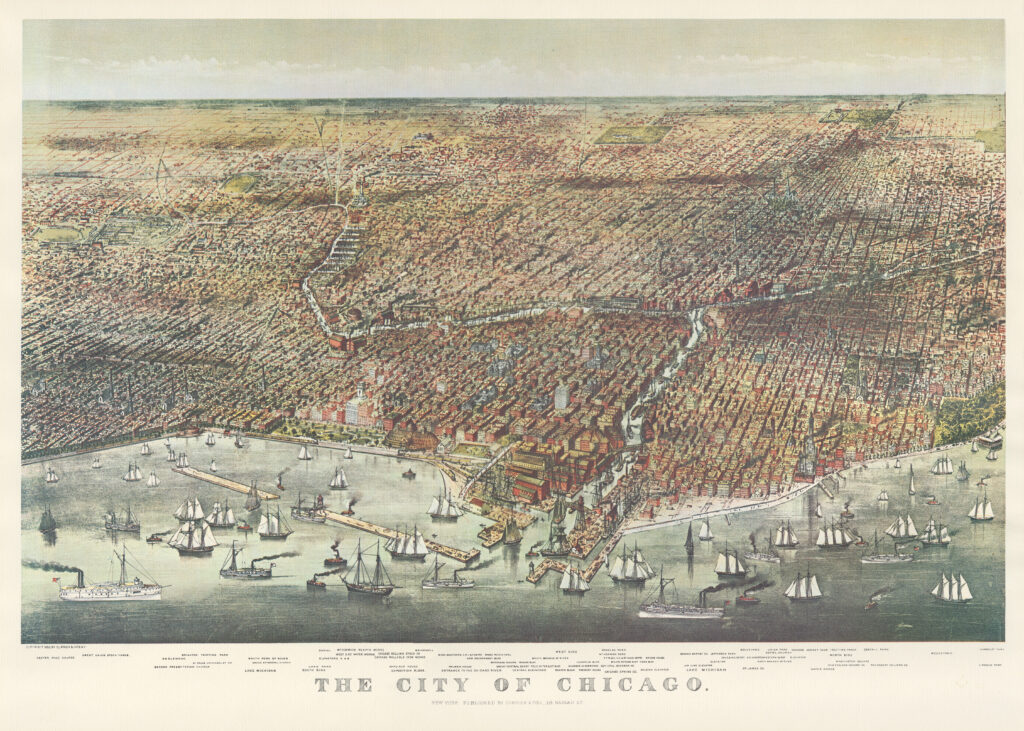
This map of Chicago, located at the Amon Carter Museum of Western Art in Forth Worth, Texas may not have “Chicago, Illinois” in the location field. However, it should have “Chicago, Cook, Illinois, United States” in the subject field. This is because it’s a map representing Chicago.
Rights
The rights section should contain the following phrase:
“Limited non-commercial, educational, and personal use only. This image was provided by Smith College. Smith College only.”
Finishing
When you’re done, click the Save & Close button in the upper right corner of the record.