
The Smith College Imaging Center Collection is hosted on JSTOR and managed through JSTOR Digital Stewardship Services.
Once you use your login to enter Stewardship, click on Manage Existing Projects. The project we do most of our work in is the Imaging Center Collection.
Uploading Images
- Click on the Smith College Imaging Center Collection.
- Click the red Add button and choose the Upload Media option.
- Drag and drop or select one or more image files to upload to the collection.
- Once the upload is finished, Stewardship will create a new blank item record for each image.
Cataloging an Item Record
What Am I Describing?
Before you begin cataloging, you’ll have to decide which part of the image your metadata fields will describe.
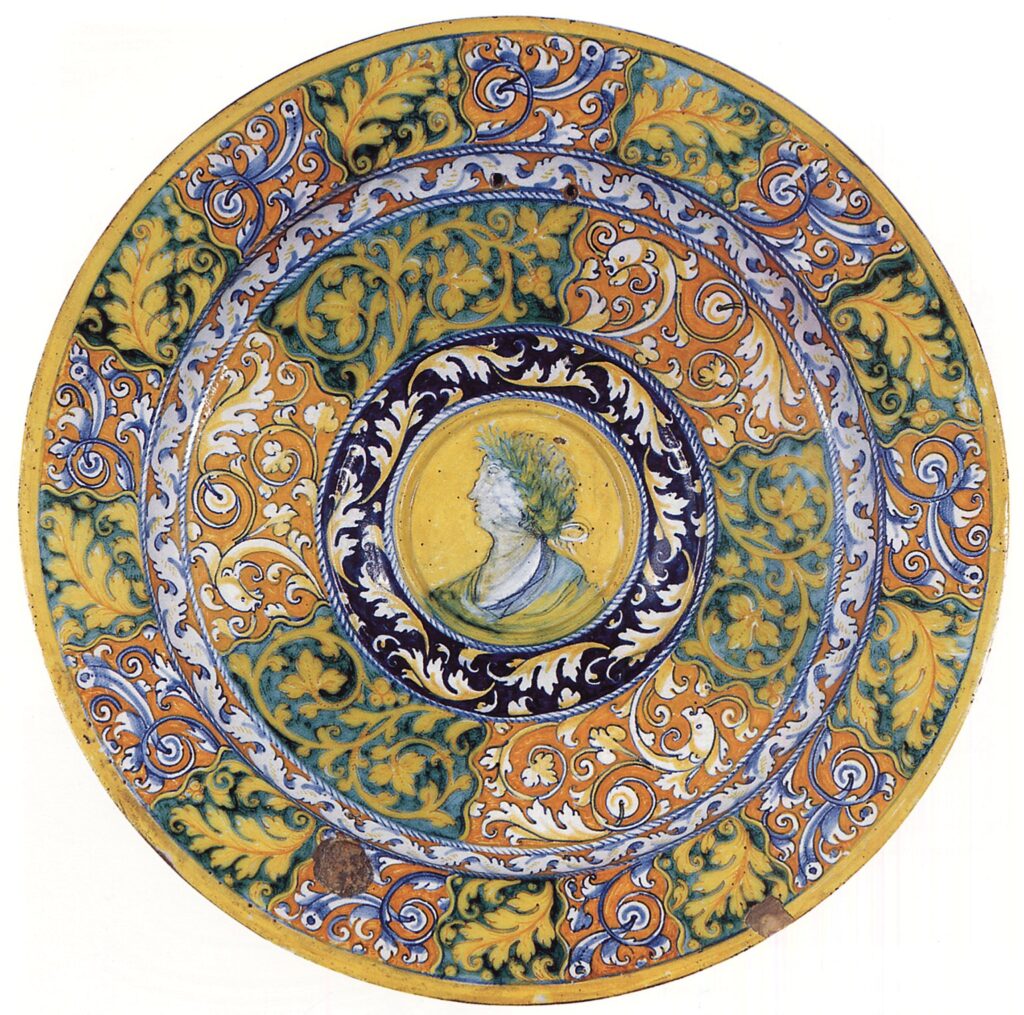
For most sculptural objects, places, and architectural structures, the 3D object represented in the photograph is what you’re describing. For example, list the date this plate was created rather than the date it was photographed.
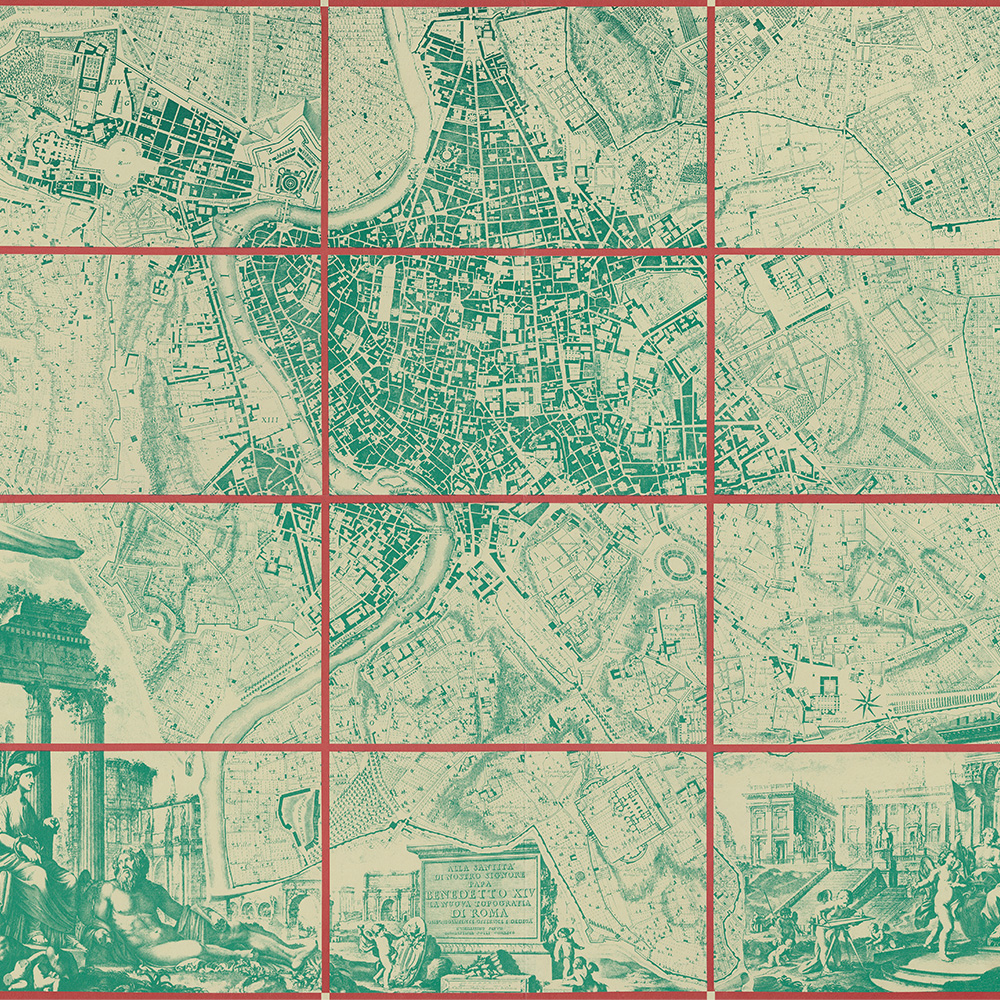
For illustrations, maps, plans, and paintings, describe the 2D object. For example, list the date a map was created rather than the period or age of the structure it depicts.
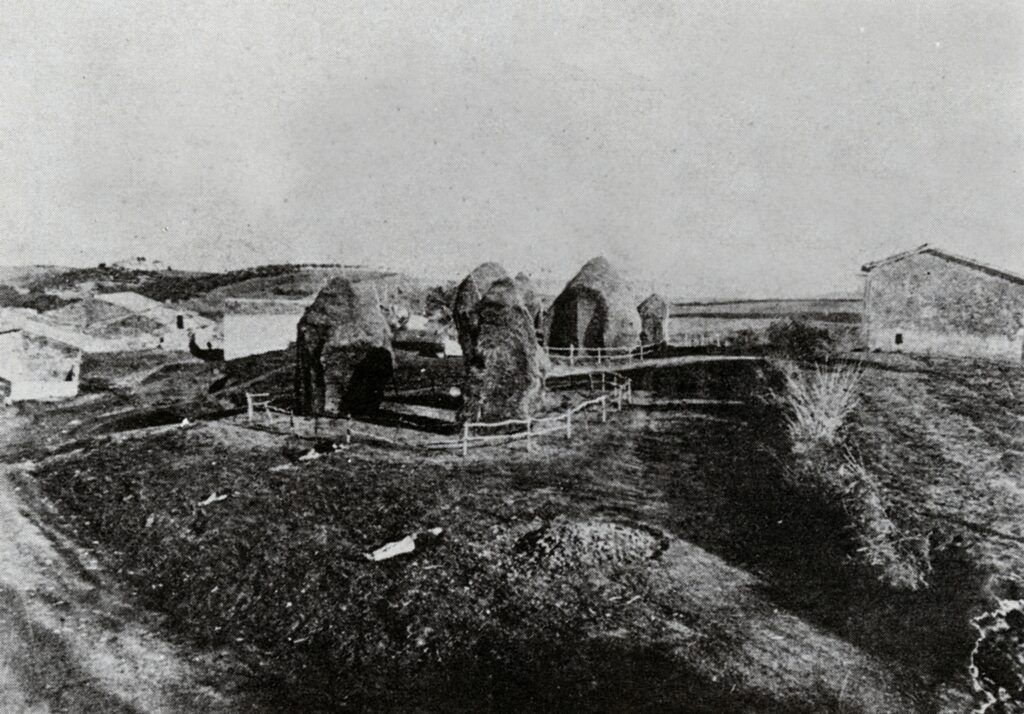
For records where the photograph itself is more significant that the object being photographed, catalog the image as a photograph. List the photographer as the creator and the date as the date the image was shot.
Search for Similar Records
The object you’re cataloging may already have related records within the collection.
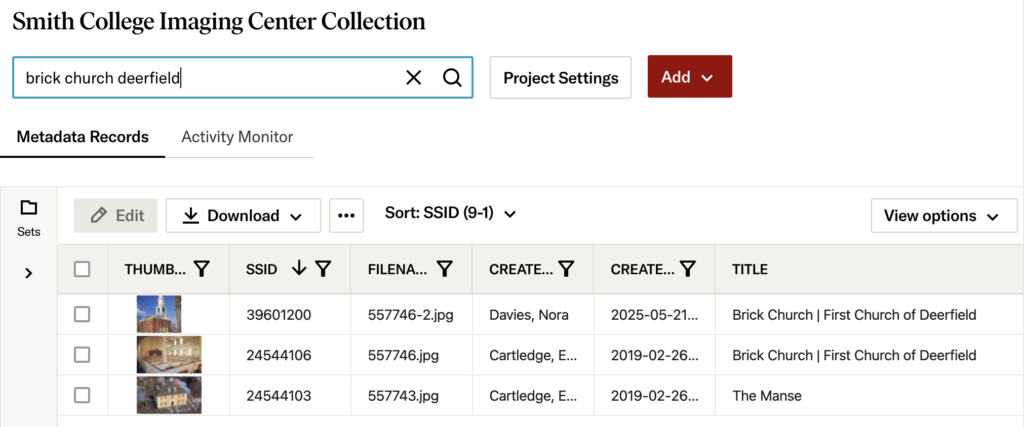
- Use the search bar at the top of the page to search the title of your object.
- If the title does not yield results, try searching by artist or location. The work may be known under a different but similar name.
- Look through these records carefully! Make sure that the images, dates, and location information reflect the information provided with your new object.
Copy Any Duplicate Information
- Click on one of the previously-created records.
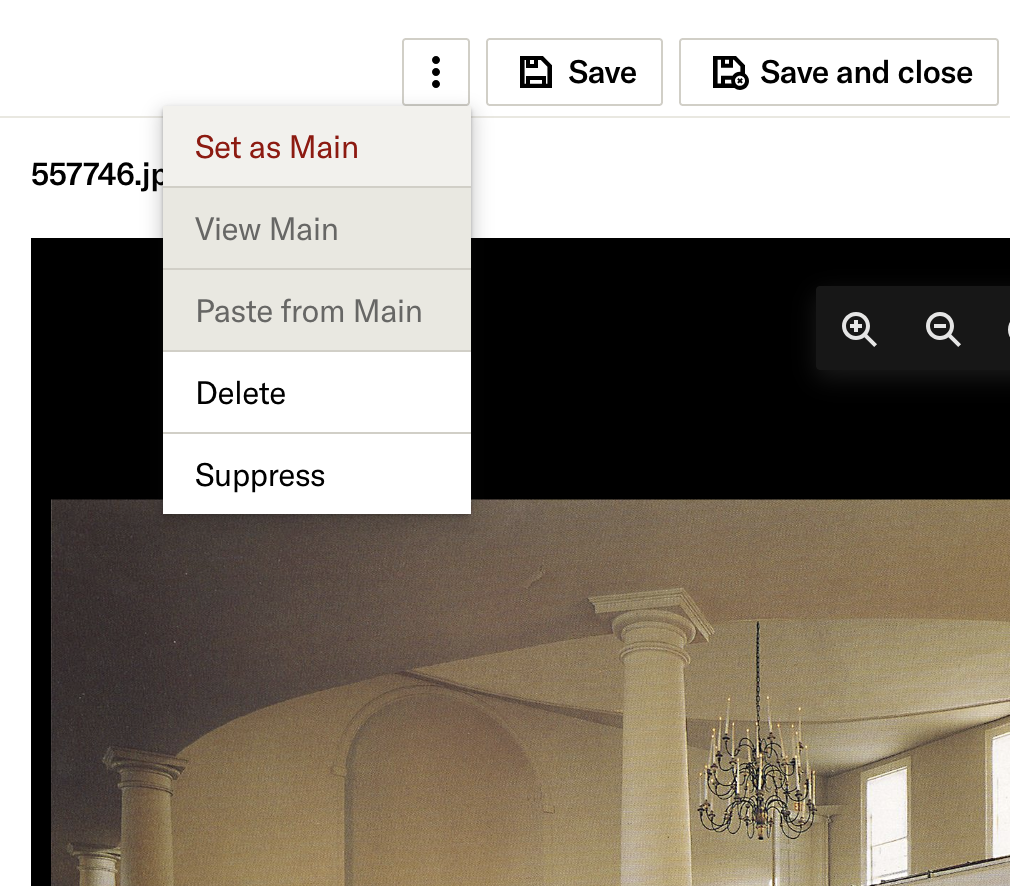
- Click the Options (three-dot) button at the top of the page and choose Set as Main. (The record set as the main record will be indicated by a star icon).
- Return to your new record.
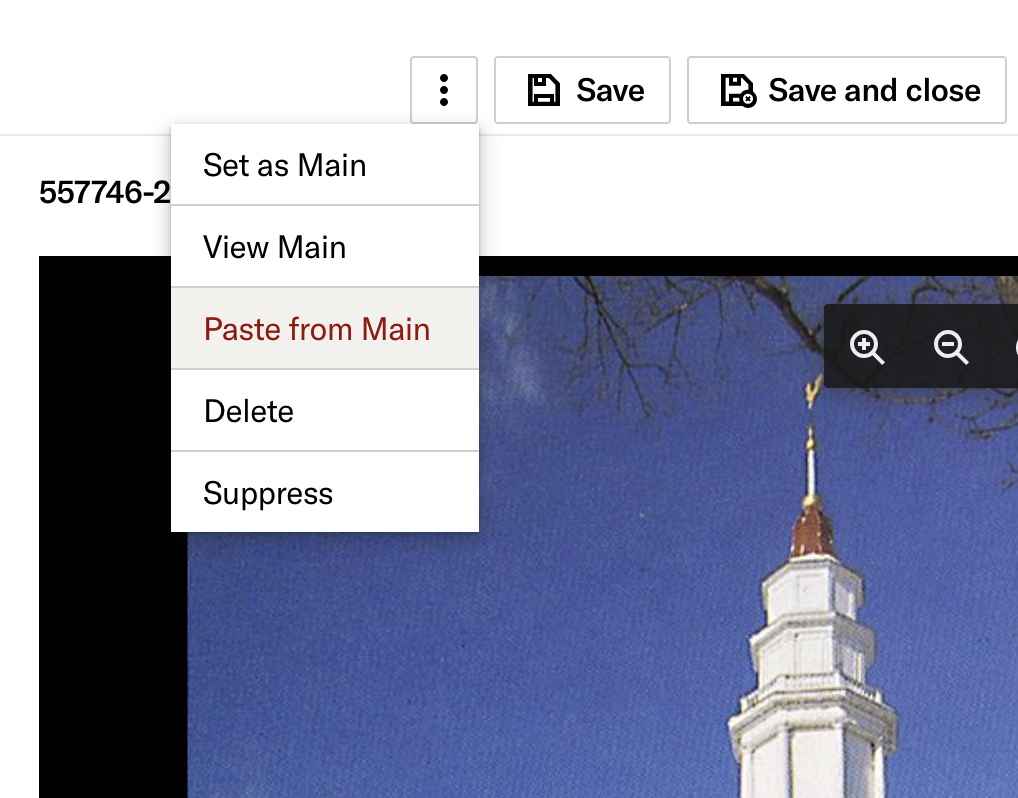
- Click the Options button and choose Paste from Main. This will duplicate all the information from the main record.
- Click Save. You can repeat this process for as many records as you need to.
- Once you’re finished, return to the main record, click Options and choose Clear Main.
Fill the Metadata Fields
If you don’t find any similar records to copy, it’s time to catalog the new item by filling out its blank metadata fields.
- Skip any field if the information is unknown or unavailable. Skip all the fields not described in this section.
- When searching for a term, try to use terms marked as AAT (Art & Architecture Thesaurus), ULAN (Union List of Artist Names), or TGN (Thesaurus of Geographic Names). Avoid using terms marked as Smith College: Provisional. You can use provisional terms when no official ones are available, but use them sparingly.
- Multiple terms in a field should be separated by a semicolon.
Creator
Click Add links and Shared Shelf Names to search for the creator(s) of the work. In the pop-up menu, type the name of the artist/designer/agent and click Link & Append.
The result should read like this:
- Nolli, Giovanni Battista (Italian engraver and architect, 1701-1756)
- Rhie, Marylin M. (American photographer and scholar, 1937-2020)
Title
Enter a title for the work using camel case (e.g. Camel Case). If the object has alternate or other language titles, separate them using the pipe symbol “|” by clicking shift+backslash.
An example of a title might be:
- Vairocana Buddha | Pirosa Bul
- Plan of Rome, as in 1667
Culture
Click Add Links and select Shared Shelf Culture from the drop-down menu. Search for the culture of the primary creator, click the checkbox next to it, then click Done.
The culture will typically be a broad term, for example:
- Tibetan
- Italian
- Canadian
Image View Description
If applicable, enter a short description of the spatial, chronological, or contextual aspects of the work in the image.
For example:
- detail of lower left-hand corner
- view facing northwest
- interior view of third floor, west wall
- view of building at sunset
Date
Enter a date range or textual date information for the object. For dates before the Common Era use BCE, for estimate dates use a date range or “ca.”
For example:
- 1205 – 1225
- ca. 160 BCE
- 15th century
Artstor Earliest & Latest Date
Enter the numerical dates that represent your date range or estimate dates in the Date section. Use negative numbers for BCE dates. If there is only one date, put that date in both the earliest and latest date field.
For example:
- Earliest: 1205, Latest: 1225
- Earliest: -160, Latest -160
- Earliest: 1400, Latest: 1499
Style/Period
Click Add links to search the Art & Architecture Thesaurus. Type in a style or period for the object. Click Link & Append. This is also where more specific cultural information can be entered.
For example:
- Impressionism
- Five Dynasties
- Gupta
Materials/Techniques
Click Add links to search the Art & Architecture Thesaurus for the materials and techniques used when creating the object. Click Link & Append for each one.
For example:
- gouache (water-base paint)
- weaving; cotton (textile); wool (textile)
- engraving (printing process)
Measurements
Enter the full measurements of either the 2D or 3D object depicted.
The result should read like this:
- 73 x 81 inches
- 21.5 centimeters (height)
Artstor Classification
Click Add terms to choose a classification from the list. This classification will typically be a category that describes the Work Type.
Work Type
The work type describes what an object is.
Click Add links to use the Art & Architecture Thesaurus to search for the Work Type and click Link & Append. The AAT term will usually be written as plural.
For example:
- temples (building)
- paintings (visual works)
- sculpture (visual work)
Repository
If the work is an object housed in a museum, library, or larger building, list that location here.
Click Add links and search the Thesaurus of Geographic Information or Shared Shelf Names. If you find the Repository, click Link & Append. You may need to adjust the term to fit the typical format we use.
The result should read like this:
- Alchi Monastery (Ladakh, India)
- Metropolitan Museum of Art (New York, New York, United States)
- Musée Guimet (Paris, France)
Repository Accession Number
If the object is a part of a library or museum collection, list its accession number here.
Location
Choose the current or most recently known location of the item or structure. If the object is held in a museum, this will be the geographical location of the museum.
Click Add links to search the Thesaurus of Geographic Information for place names and click Link & Append.
The result should read like this:
- Rome, Roma, Lazio, Italy
- Northampton, Hampshire, Massachusetts, United States
Creation/Discovery Site
Choose the location where the object was originally found or created. Leave this section blank if the creation site is the same as the current location.
Click Add links to search the Thesaurus of Geographic Information for place names and click Link & Append.
The result should read like this:
- Ostia, Roma, Lazio, Italy
Artstor Country
The country of the item typically reflects the culture of the creator or the country in which the object was created. For example, a Tibetan painting currently in a New York museum would still have the country listed as Tibet.
Click Add terms to search for and select the country.
Description
This is where you will add any additional contextual or descriptive information about the item. Always use full, punctuated sentences when writing a description.
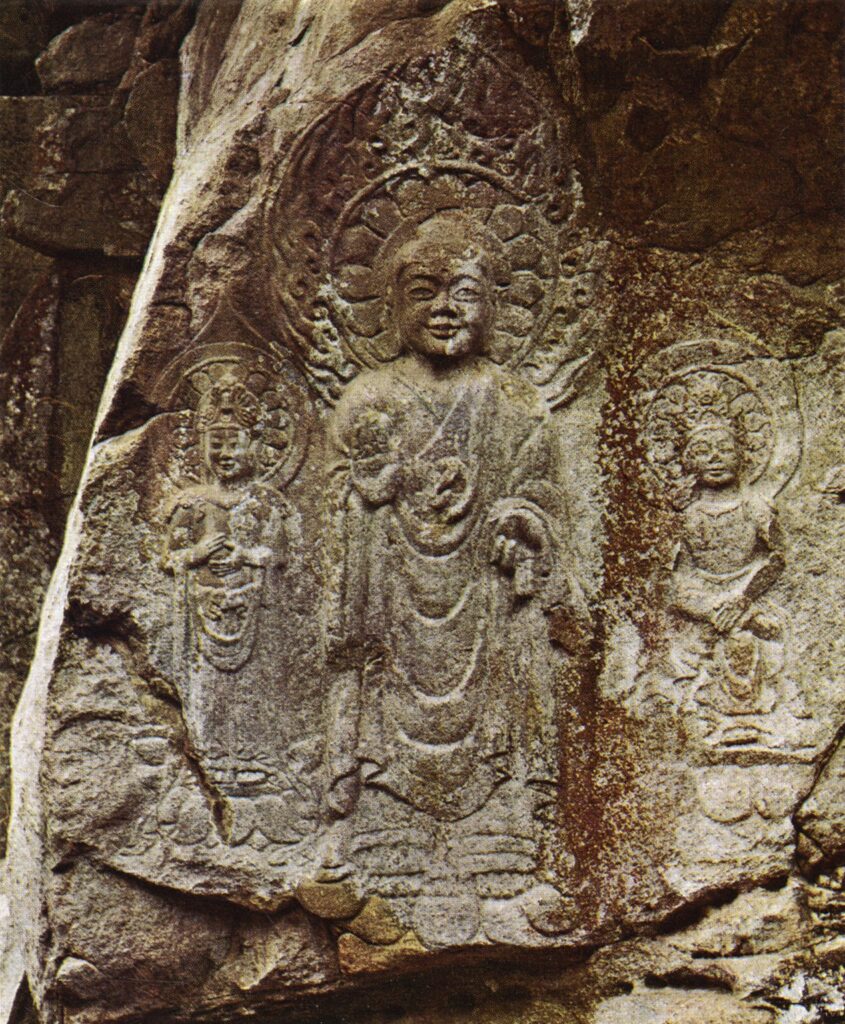
For example:
- “This Buddha triad (National Treasure 84) consists of a Shakyamuni Buddha flanked by two bodhisattvas, one standing and the other seated in a meditation pose. The photograph is a gift from Marylin Rhie.”
If you have no addition information to add, you can leave it blank.
Subject
Subject terms describe the content of the cultural object or artwork. They can also be used to describe topics related to the object.
Click Add links to use the Art & Architecture Thesaurus or Thesaurus of Geographic Information to search for subject terms and click Link & Append.
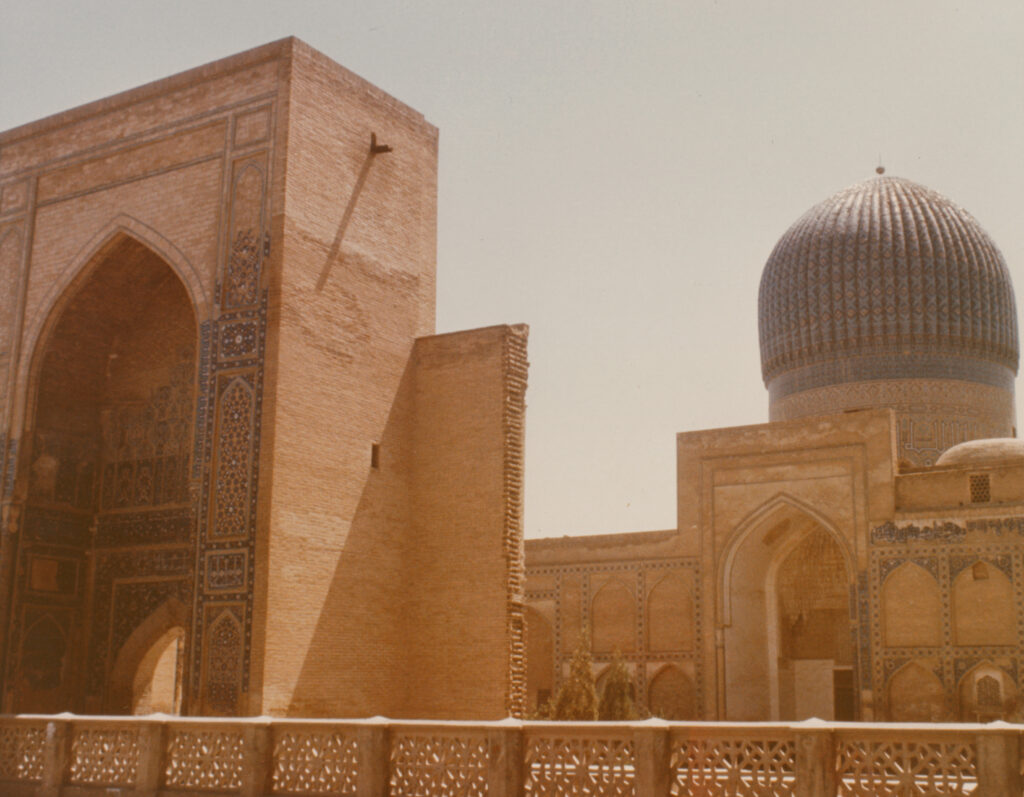
For example, the record of the Mausoleum of Timur might have the subject headings: Timur (Sogdiana conqueror, 1336-1405); mosaics (visual works); tombs; domes (architectural element).
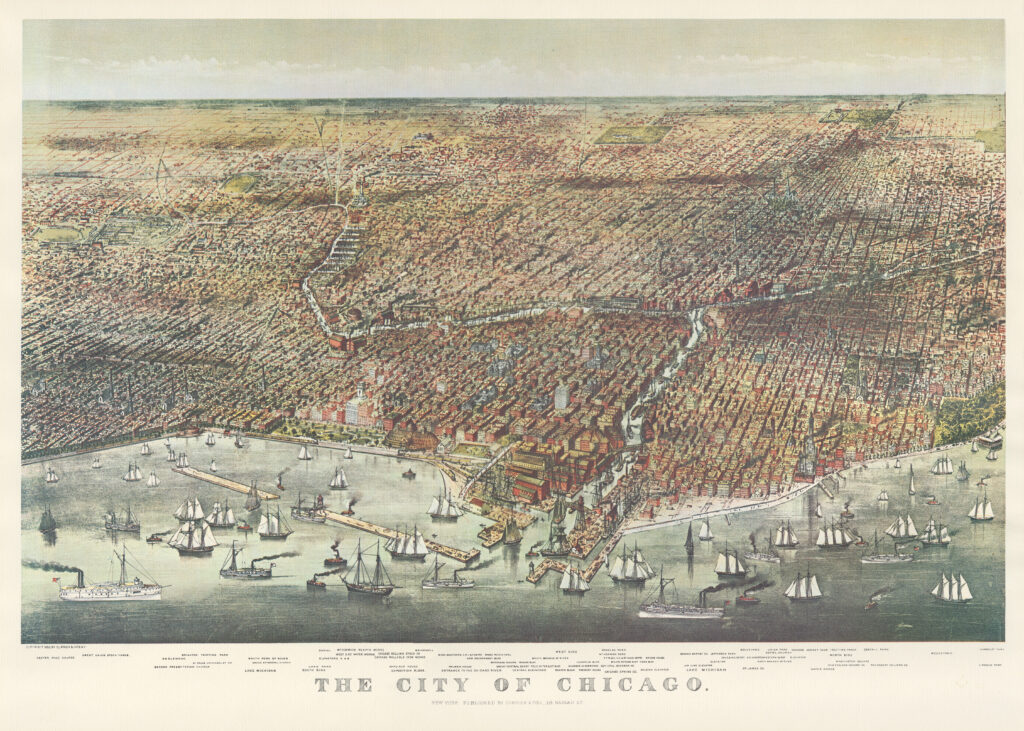
This map of Chicago, located at the Amon Carter Museum of Western Art in Forth Worth, Texas may not have “Chicago, Illinois” in the location field. However, it should have “Chicago, Cook, Illinois, United States” in the subject field.
Image Credits
If the image is not the primary work being cataloged, you can enter the information of the image’s creator here. Click Add links and search Shared Shelf Names, then select the image creator and click Link & Append.
Rights
The rights section should contain the following phrase:
“Limited non-commercial, educational, and personal use only. This image was provided by Smith College. Smith College only.”
Finishing
When you’re done, click the Save & Close button in the upper right corner of the record.