To ensure your post appears on the homepage with your thumbnail image, you’ll need to do two things:
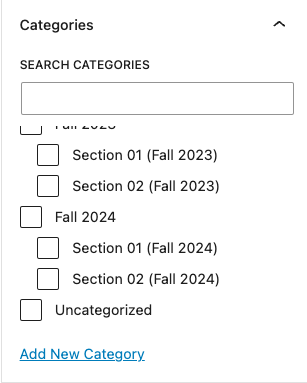
Add a Category from a Post
- Select Categories to expand the Categories option.
- Select the checkbox next to the Category you want to choose
- To add a new category, select + Add New Category and enter the new category name. You may also set the Parent category to nest the new category under an existing category.
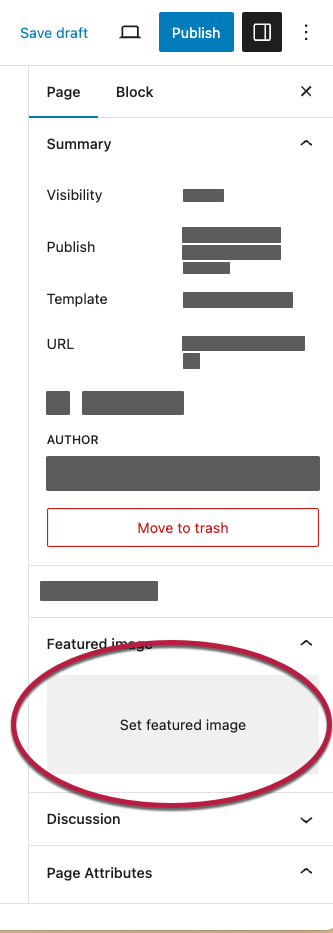
Add a Featured Image
- Navigate to the post you want to update.
- In the WordPress block editor, look for the Settings sidebar on the right side of the workspace.
- If the settings sidebar is closed, select the Settings button in the right corner of the page to open it.
- Scroll down to “Featured Image,” then select Set featured image. The “Featured Image” window will open. You can then add a featured image by uploading a new image or choosing an existing image from the “Media Library.”