Sonic Scavenger Hunt
Step 1: Record sounds.
Use a device like the H1N portable audio recorder to collect a variety of audio clips. They don’t have to be long recordings, only a few seconds each is all you really need.
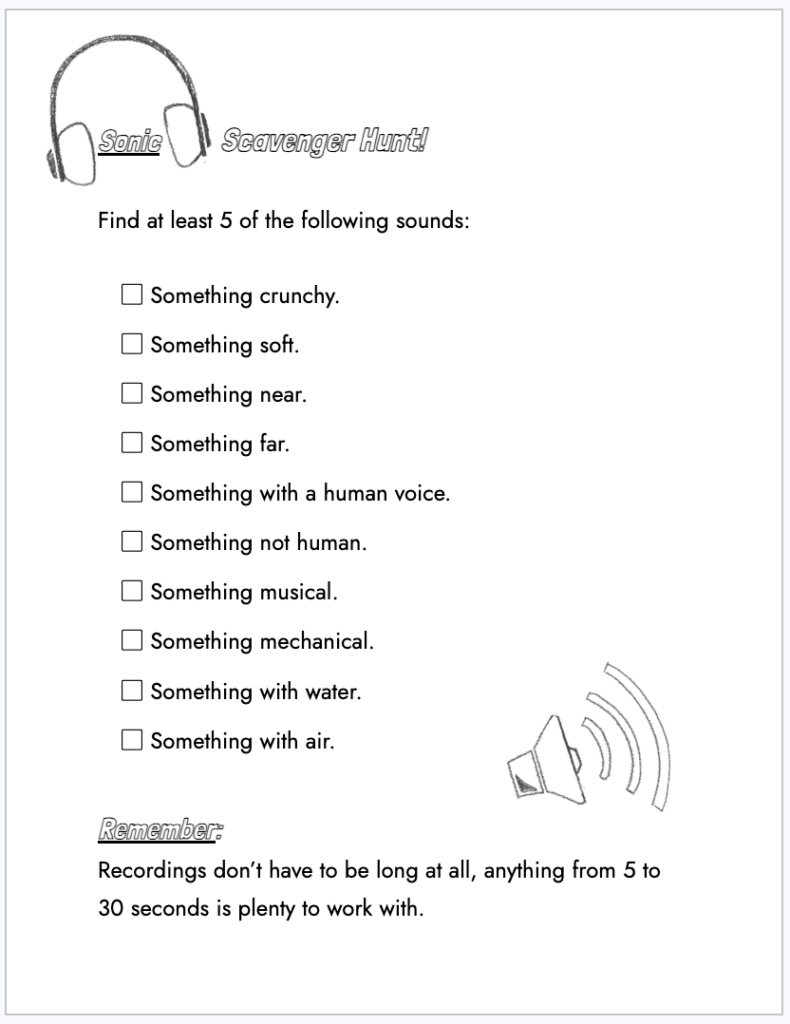
See the list below for ideas:
For an intro to the recording device, see the tutorial video below:
Step 2: Download and install Audacity on your machine.
Audacity is a free, open-source audio editing and recording software compatible with both Windows and Mac devices. To download Audacity, go to www.audacityteam.org/download → select your operating system → and then choose Download.
*Please note* that you do not have to create an account or use any of the paid services that Audacity might promote, including audio.com or cloud storage. Feel free to ignore those offers as you go through the set up process.
Once the download is complete, follow the instructions to finish installing the software on your device.
Step 3: Transfer recordings from Audio Recorder.
Use the USB cable that comes with the audio recorder to connect your recorder device to your computer. Choose Card Reader out of the options with the down arrow → then select the right arrow button to connect.
Now you can view the contents of the SD card and save the audio recordings to your computer.
Step 4: Open Audacity to start a new project.
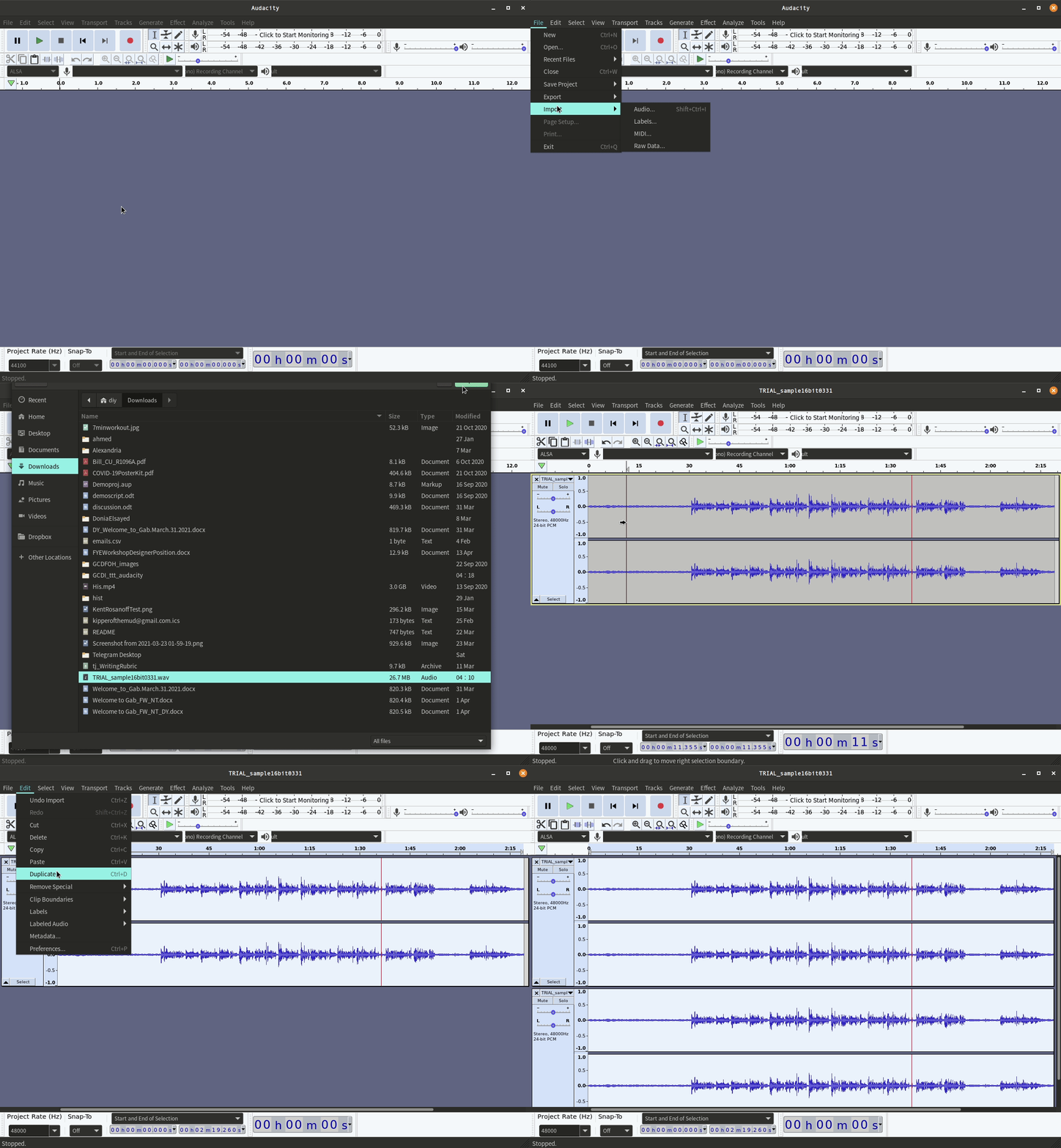
To get started, import your pre-recorded audio files to Audacity by either dragging and dropping them into Audacity from a folder on your computer, or by going to File → Import → Audio… and choosing your files from the browser.
As you add audio into Audacity, a new track will be created for each audio file. Once added, these tracks can be deleted, renamed, duplicated, and/or reordered.
Step 5: Edit your audio!
Highlight portions of your audio to apply effects, found in the Effect menu at the top of the window.
To learn more about adding effects to your audio, explore some of these sites:
- Basic editing + change the pitch or tempo of the audio.
- Adding in effects other effects, like reverb + filters.
Step 6: Save & Export your work
While working in Audacity, you can save your in-progress project as a .aup file by going to File → Save Project. You can open this .aup file to open Audacity and keep working on this audio project, but it is not a final audio file that can be uploaded/shared.
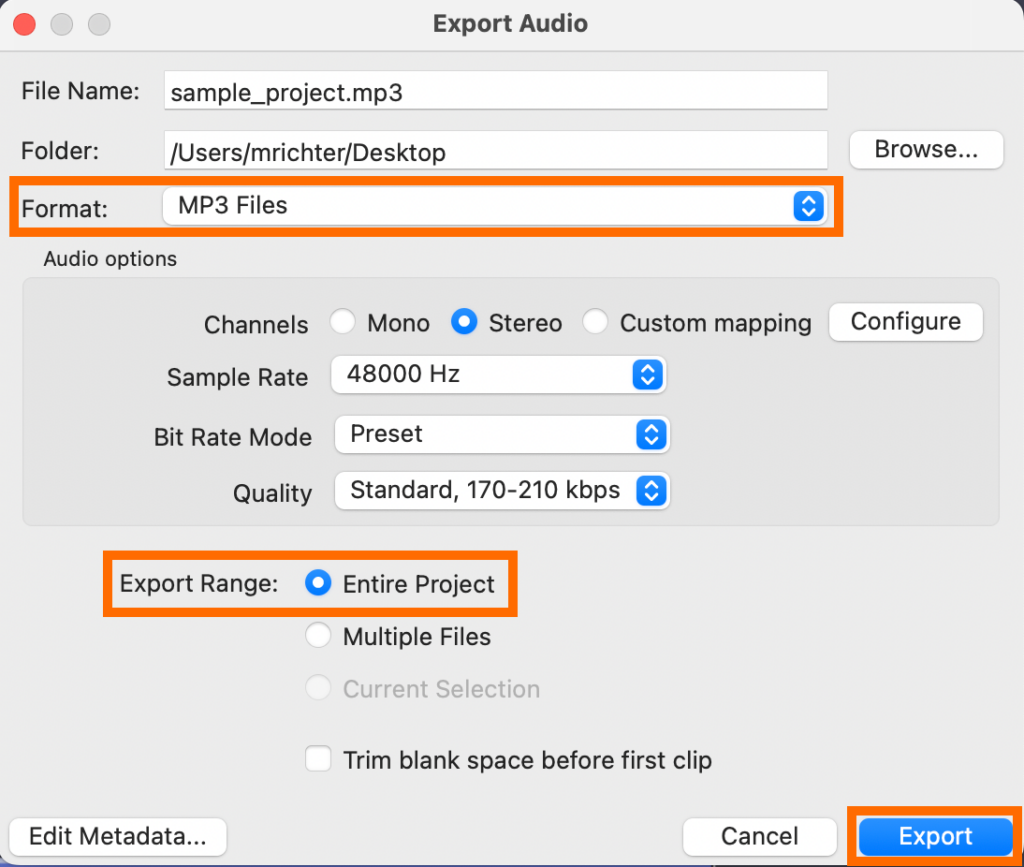
To export your project as a .mp3 file, you will need to choose File → Export Audio… → Export to computer. Then you can change the file name, destination, and file format (mp3), making sure to select the Export Range as Entire Project, and finally choose Export.